
My Approvals
The requests that require your approvals, routed to you, including the requests of entitlement access, expenses, timesheets and leaves (absences). For each request, you can view the request information and either you can approve or reject or redirect it.
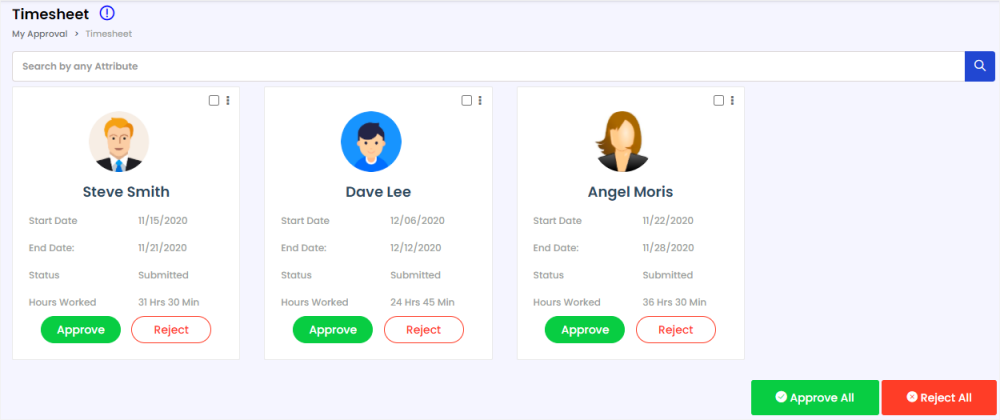
As a reporting manager/supervisor, you will receive the requests related to timesheet entries submitted by employees reporting to you. You have the option to view the details of the request, edit/update the details and you can approve or reject or redirect timesheet entry.
To approve the Timesheet request:
- On the Global menu, click on My Approvals and then click Timesheet on the sub-menu. The Timesheet page displays.
- Click Approve/Reject button on the request that you would like to respond to.
Note: You can click the three dots on the right-upper corner of the timesheet request tile and view and edit the details of the request before responding to it. You can also respond to the request via email that you received as notification for the request submitted by an employee.
Expense Approvals
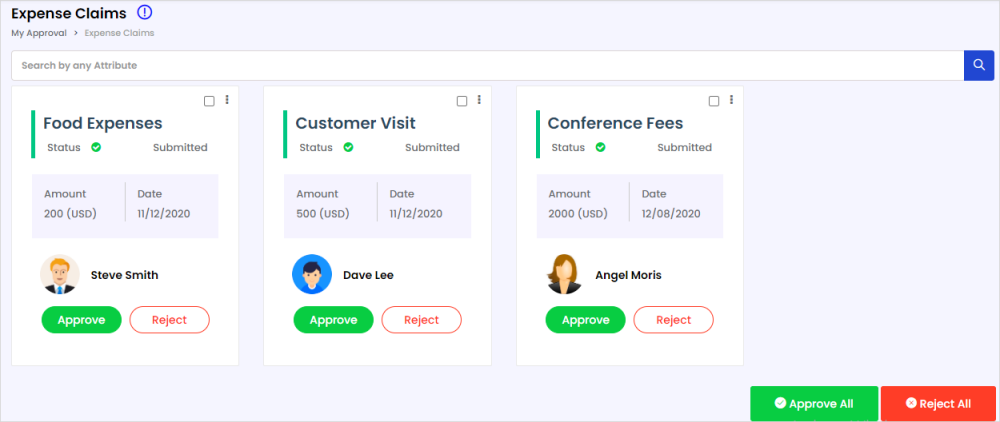
As a reporting manager/supervisor, you will receive the requests related to expense claim requests submitted by employees reporting to you. You have the option to view the details of the request, edit/update the details and you can approve or reject or redirect expense entry.
To approve the Expense Claim request:
- On the Global menu, click on My Approvals and then click Expense Claims on the sub-menu. The Expense Claims page displays.
- Click Approve/Reject button on the request that you would like to respond to.
Note: You can click the three dots on the right-upper corner of the Expense request tile and view and edit the details of the request before responding to it. You can also respond to the request via email that you received as notification for the request submitted by an employee.
Leave and Time off Approvals
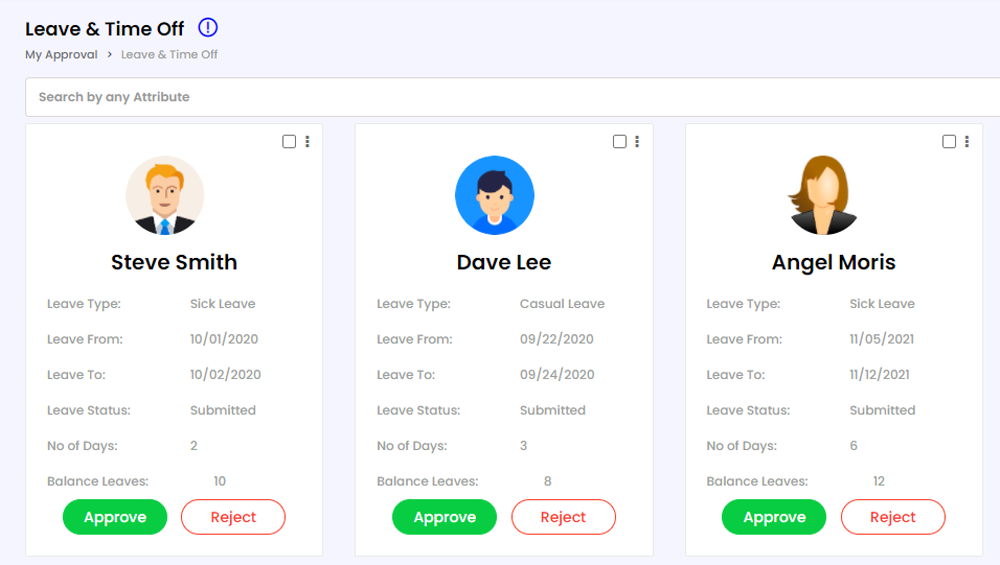
As a reporting manager/supervisor, you will receive the requests related to leave and time-off requests submitted by employees reporting to you. You have the option to view the details of the request, edit/update the details and you can approve or reject or redirect leave/time-off request.
To approve the Leave/Time off request:
- On the Global menu, click on My Approvals and then click Leave & Time off on the sub-menu. The Leave & Time-off page displays.
- Click Approve/Reject button on the request that you would like to respond to.
Note: You can click the three dots on the right-upper corner of the Leave/time off request tile and view and edit the details of the request before responding to it. You can also respond to the request via email that you received as notification for the request submitted by an employee.
Access Requests
When the workflow manager of entitlement requests (including account, group and group member provisioning in the target system) named you as an approver for a specific stage, you receive an approval task based on the user request. You can approve or deny one after the other or you can also respond to multiple requests by clicking Approve All / Reject All / Redirect buttons after selecting multiple records.
To approve the access request:
- On the Global menu, click on My Approvals and then click Access Requests on the sub-menu. The Access Requests page displays.
- Click Filter drop-down and select the entity name for which you would like to see the approval pending requests.
- Click Approve/Reject/Redirect button on the record to respond to the request
- You can also select multiple records and then click Approve All/Reject All/Redirect All buttons to respond to multiple requests at a time
Recertification Requests
Recertifications automate the process of periodically revalidating access of various entities in the identity and access management module such as group/role/entitlement memberships and accounts in target systems. It validates whether the access associated with an entity in the target system is still required or not.
Based on the policy details mentioned for the entity such as recertification interval, notification interval, email template, and remedy action, the workflow engine generates e-mail notifications conveying user recertification details and To-Do activities to allow the approver to approve or reject or redirect recertification.
To respond to recertification request:
- On the Global menu, click on My Approvals and then click Recertification on the sub-menu. The Recertification page displays.
- Click Filter drop-down and select the entity name for which you would like to see the approval pending requests.
- Click Approve/Reject button on the record to respond to the request
- You can also select multiple records and then click Approve All/Reject All buttons to respond to multiple requests at a time