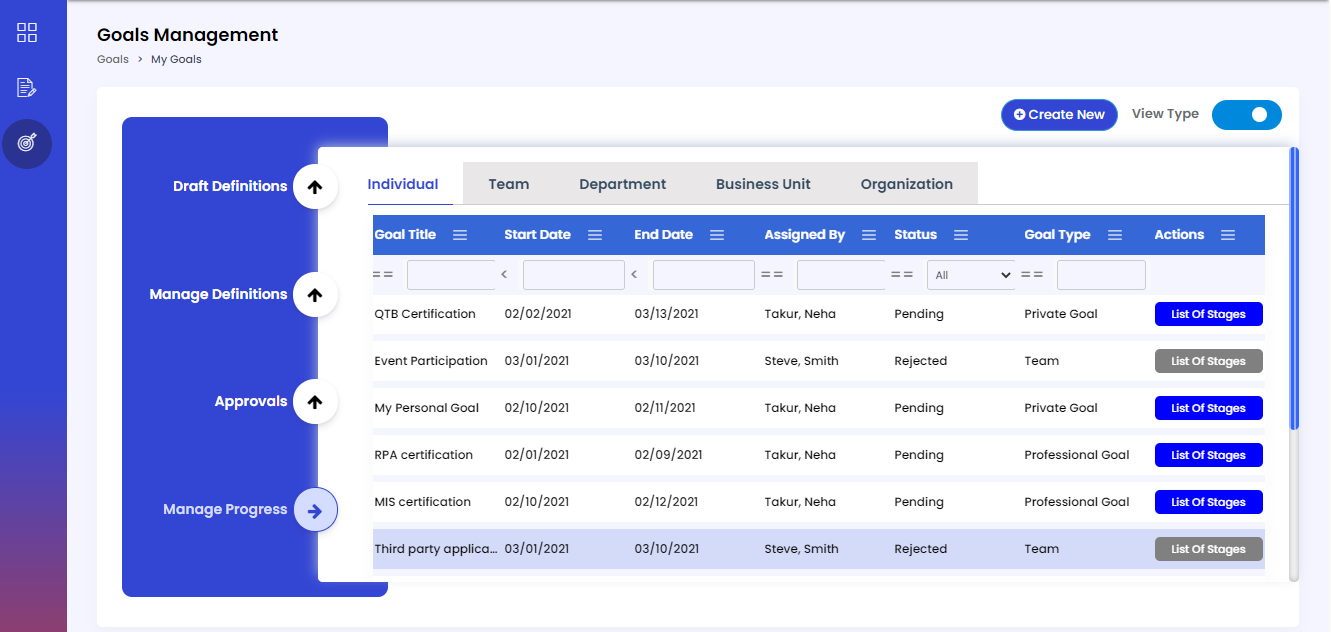
Overview of Goal Management
Goals feature enables employees, managers, department owners, Business unit leaders, and organization owners to define and set goals that support the process of establishing shared and common objectives of an organization over a period of time. Employees can update their goals assigned to them throughout their life cycle and managers, BU, department and Organization unit leaders can track the goals as the employees make progress with them.
The ORSUS Workforce module supports to define the following types of goals.
- Individual Goals: Individual Goals are specific to each employee and his or her role. These can be established by both employees and managers based on the attainment of individual business objectives and/or personal performance objectives.
- Team Goals: Team Goals are related to those strategies that are pivotal to the team’s success. These can be established for the common objectives of an organization as well as employee performance improvements. Team members collaborate together regularly to communicate the status of the milestones and each employee on the team is evaluated by the success or failure of the team goal.
- Department Goals: Just like team goals, department goals are essential in enabling members in a department to function effectively. The department head has to approve the goals that are assigned to members in the department. These are connected with the objective of aligning employee/team goals to business priorities.
- Business Unit Goals: High-level organizational goals will be translated down to the business unit, and then will be broken down even further into department, team and individual goals. The business head has to approve the goals that are assigned to members of the BU.
- Organization Goals: Organizational goals are shared and common objectives that a company's management establishes to outline expected outcomes and guide employees' efforts.
Permissions to Work with Goals Feature
Users with specific permissions or roles are allowed to access the goals. These roles control the goal actions that the users perform on various functionalities like creating or editing goal plans, approving the submitted goals and tracking or updating their progress. These roles will include team End user/employees, managers/supervisors, department managers, BU managers, and Org managers.
| What Employees can do | What Managers can do | What Department Owners can do | What Business Unit Owners can do | What Organization Owners can do |
|---|---|---|---|---|
| goals whether they are professional or private. (Professional goals need approval from manager.) |
|
|
|
|
Manage Individual Goals
- Individual Goals are classified as Professional Goals and Private Goals.
- For Professional Goals, approvals are required by managers. These goals have to be mapped to any of the Organizational /BU/Department/Team goals as a Parent goal. For Private goals, parent goal is not mandatory.
- For Private Goals, no approvals are required, and will not be shown under manager assigned goals.
- Employees are allowed to set up an individual goal with the details like name, parent goal, goal period, stages and documents. Employees then have the option to either draft or submit it.
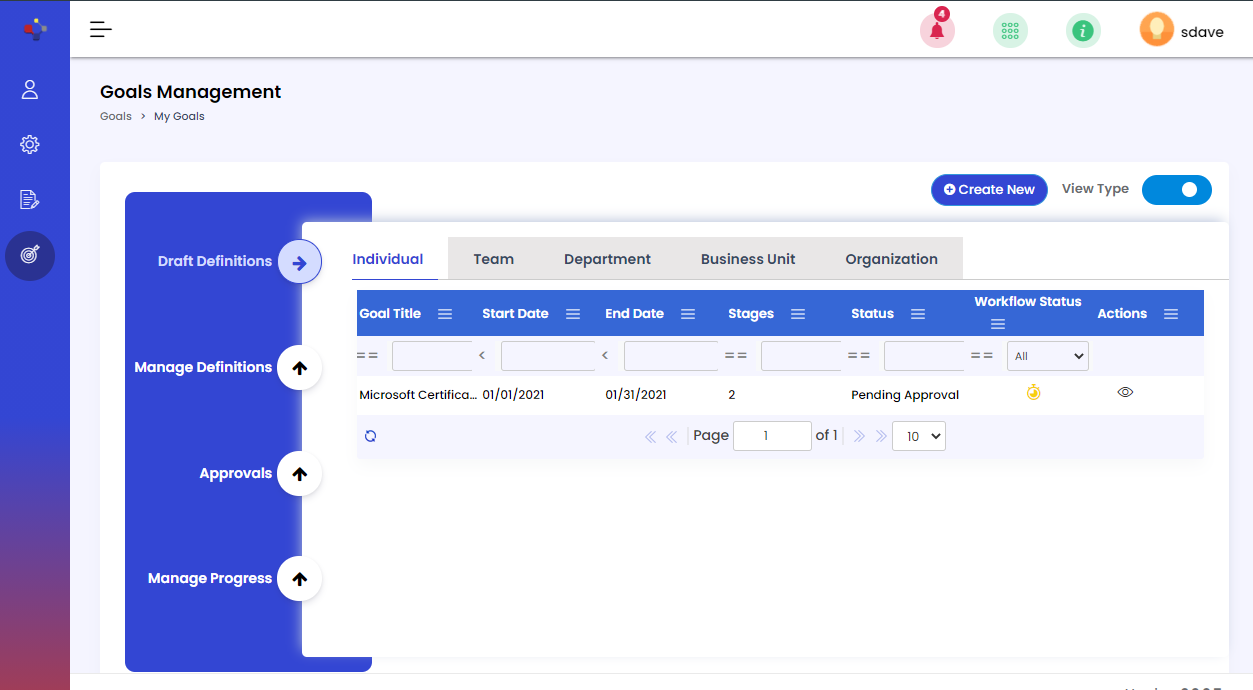
- If the goal is drafted, employees can edit and update the details of the goal in the Draft Definitions tab. They can submit it later for approval.
- Upon submit, the manager will receive the approval notification. Then the manager has to approve or reject it.
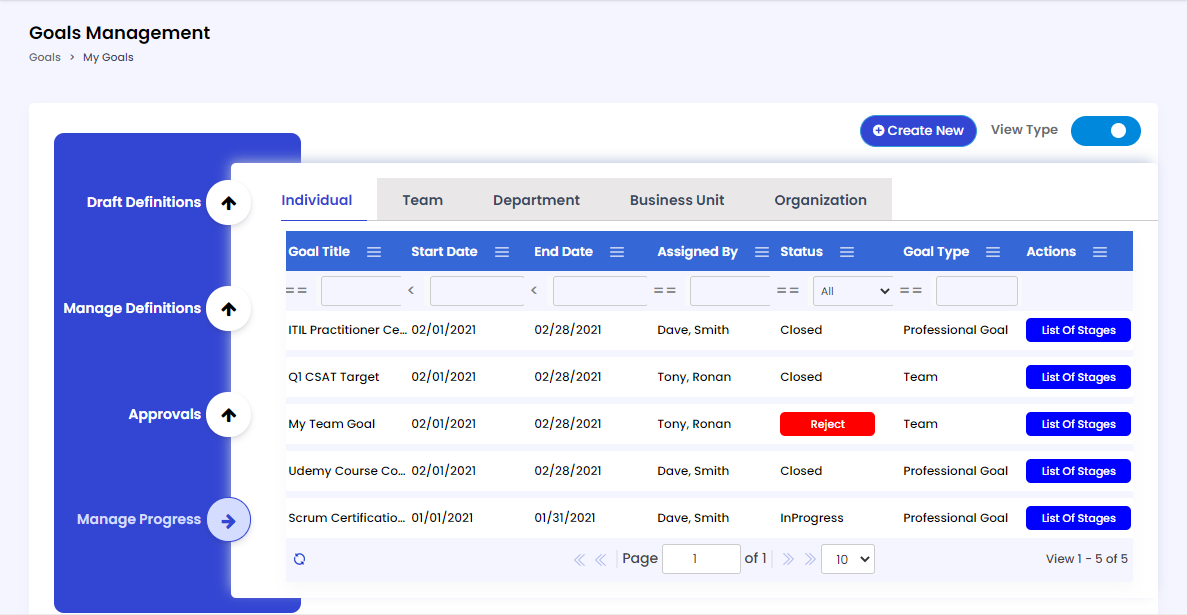
- Once individual goals are approved, employees can track and update goal status and perform stage-wise updates in the Manage Progress tab.
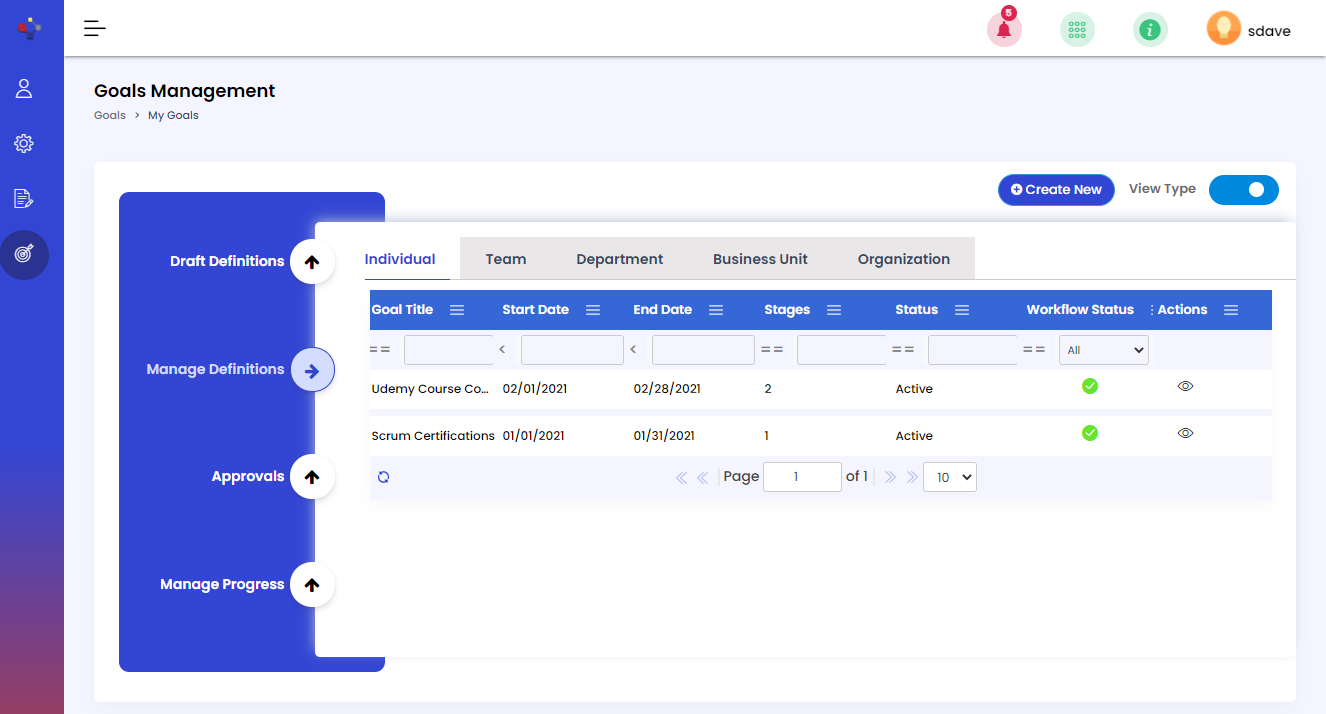
- During or after approval, employees can also edit the goal record that was created in the Manage Definitions tab. Once approved, no further approvals will be triggered for updating goal details like documents and basic details. But, approvals will be triggered on adding the stages to the goal.
Goal Actions for Individual Goals
Manage Team Goals
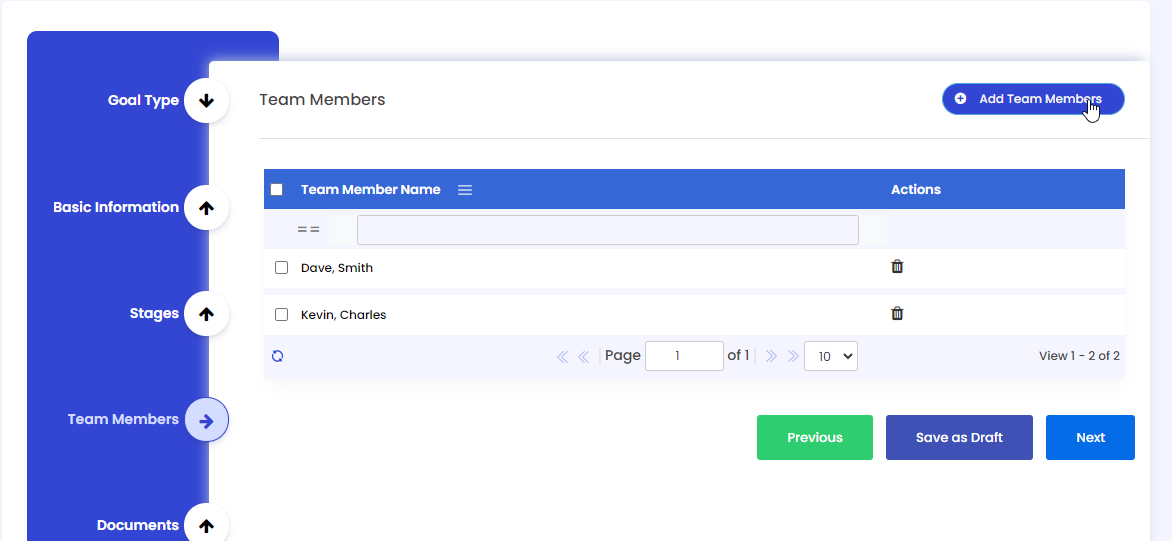
- Managers are allowed to set up the team goals with the details like name, parent goal, goal period, team members, stages and documents. They have the option to either draft or submit it.
- If the goal is drafted, managers can edit and update the details of the goal in the Draft Definitions tab. They can submit it later for approval.
- Upon submit, candidate’s manager will receive the approval notification. Then the manager has to approve or reject it. If goal created by user and approval user is the same person, approvals will be skipped for all candidates added to the goal definition.
- Once team goals are assigned, employees and managers can track and update goal status and perform stage-wise updates in the Team Goals under the Manage Progress tab.
- During or after approval, managers can also edit the goal record that was created in the Manage Definitions tab. Once approved, no further approvals will be triggered for updating goal details like documents and basic details. But, approvals will be triggered on adding the stages to the goal.
- If the goal is Mandatory (checkbox is selected), team members will not have the option to reject it. If it is non-mandatory, candidates can reject it, justifying the reason.
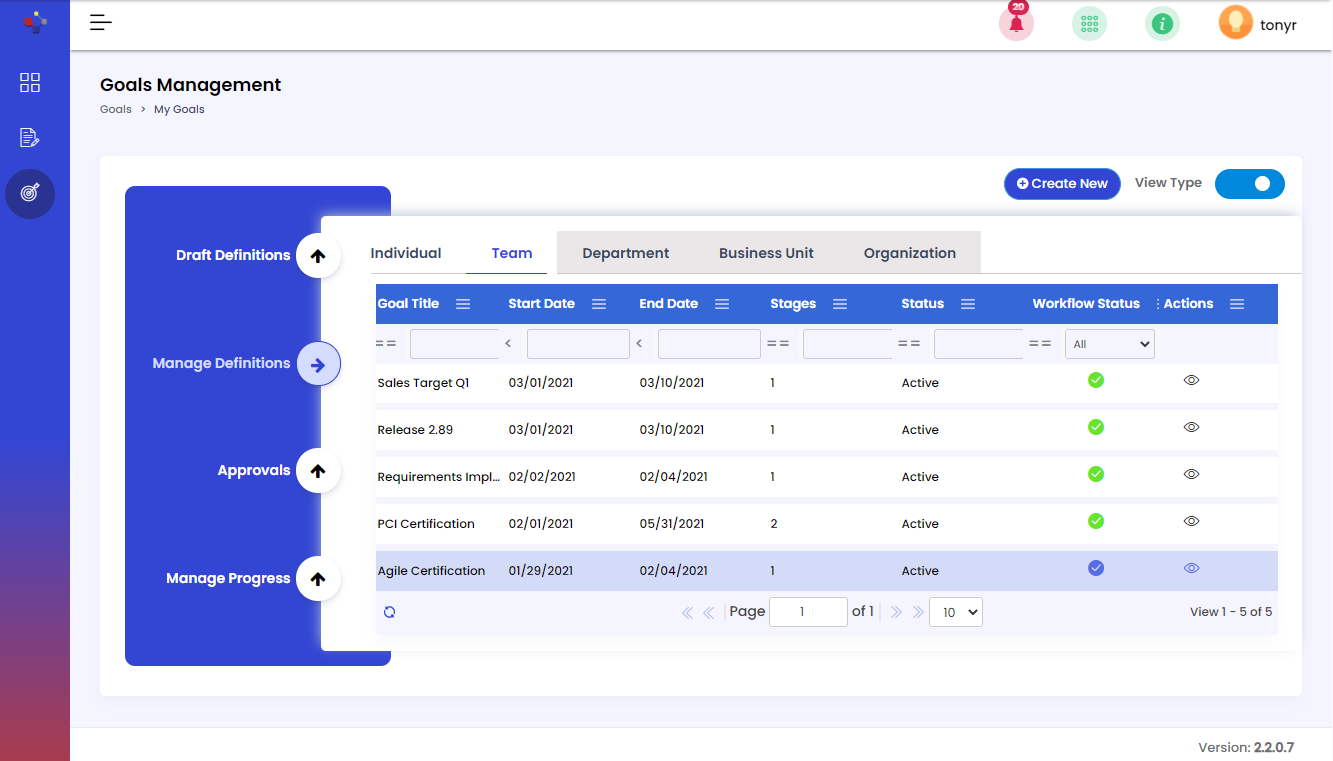
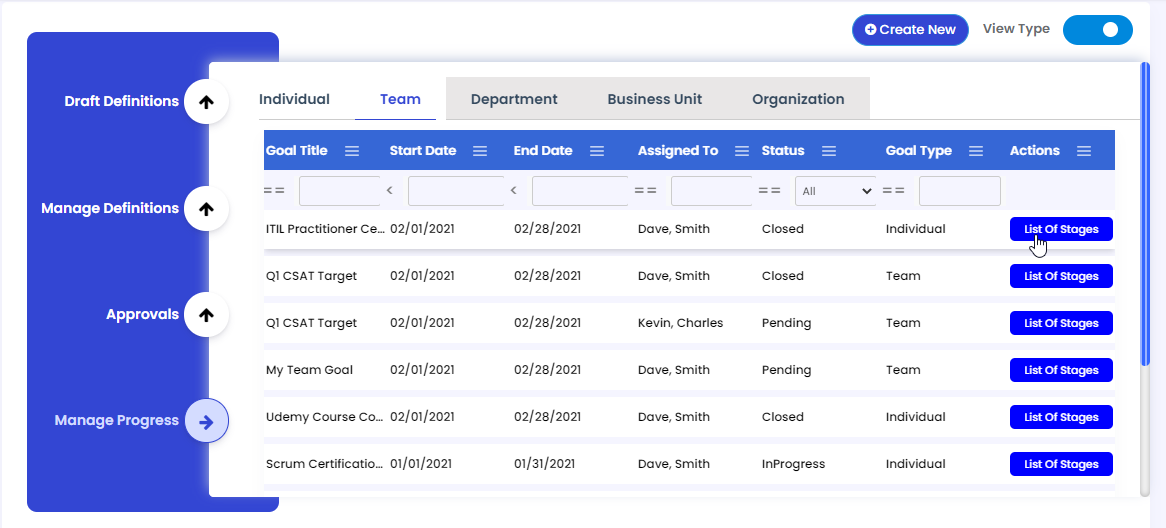
Goal Actions for Team Goals
Manage Department Goals
- The Department Owner role members are allowed to set up the department-level goals with the details like name, parent goal, goal period, stages and documents. They have the option to either draft or submit it.
- If the goal is drafted, department owners can edit and update the details of the goal in the Draft Definitions tab. They can submit it later for approval.
- Upon submit, Department Head will receive the approval notification. Then the department head has to approve or reject it. If the goal created by user and approval user is the same person, approvals will be skipped.
- The approved department-level will act as parent goals for Team and Individual goals.
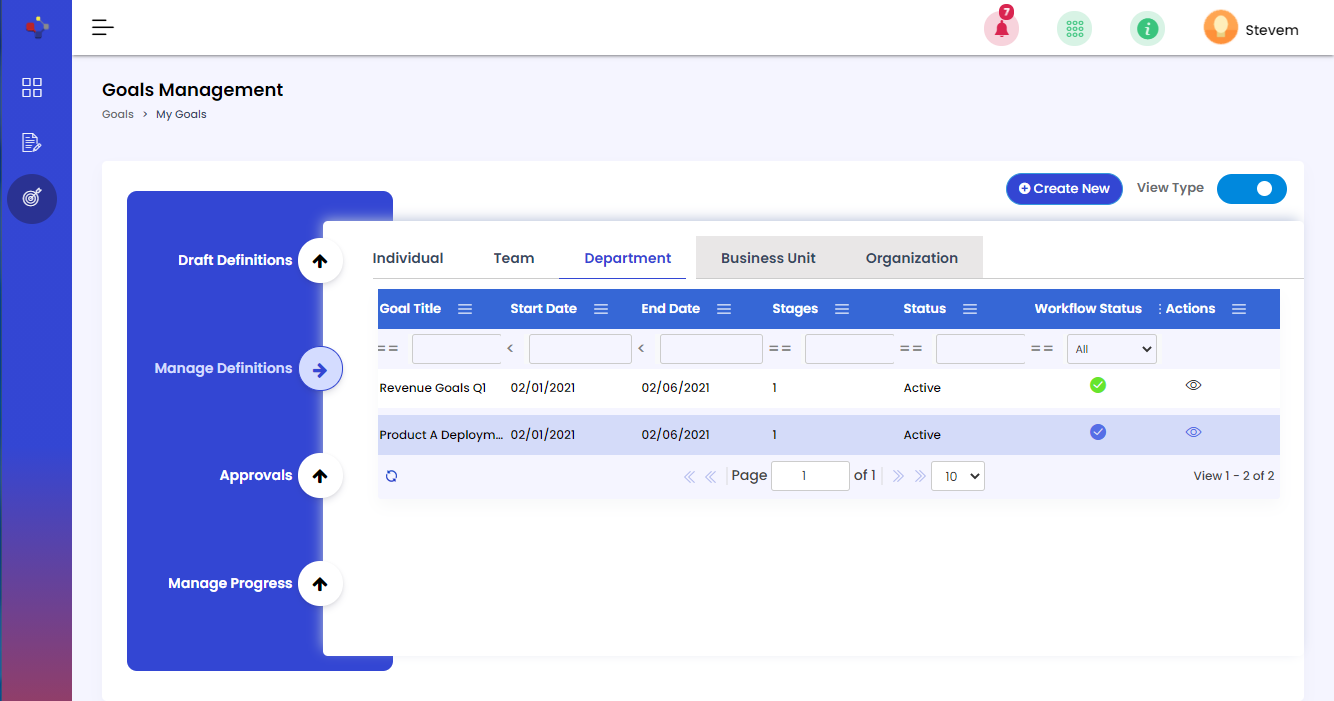
Goal Actions for Department Goals
Manage Business Unit Goals
- The Business Unit Owner role members are allowed to set up the business unit level goals with the details like name, parent goal, goal period, stages and documents. They have the option to either draft or submit it.
- If the goal is drafted, business unit owners can edit and update the details of the goal in the Draft Definitions tab. They can submit it later for approval.
- Upon submit, Business Unit Head will receive the approval notification. Then he/she has to approve or reject it. If the goal created by user and approval user is the same person, approvals will be skipped.
- The approved business unit level goals will act as parent goals for Department, Team and Individual goals.
Goal Actions for Business Unit Goals
Manage Organization Goals
- The Organization Owner role members are allowed to set up the organization level goals with the details like name, parent goal, goal period, stages and documents. They have the option to either draft or submit it.
- If the goal is drafted, organization owners can edit and update the details of the goal in the Draft Definitions tab. They can submit it later for approval.
- Upon submit, Organization Unit Leader will receive the approval notification. Then he/she has to approve or reject it. If the goal created by user and approval user is the same person, approvals will be skipped.
- The approved organization-level goals will act as parent goals for Business Unit, Department, Team and Individual goals.
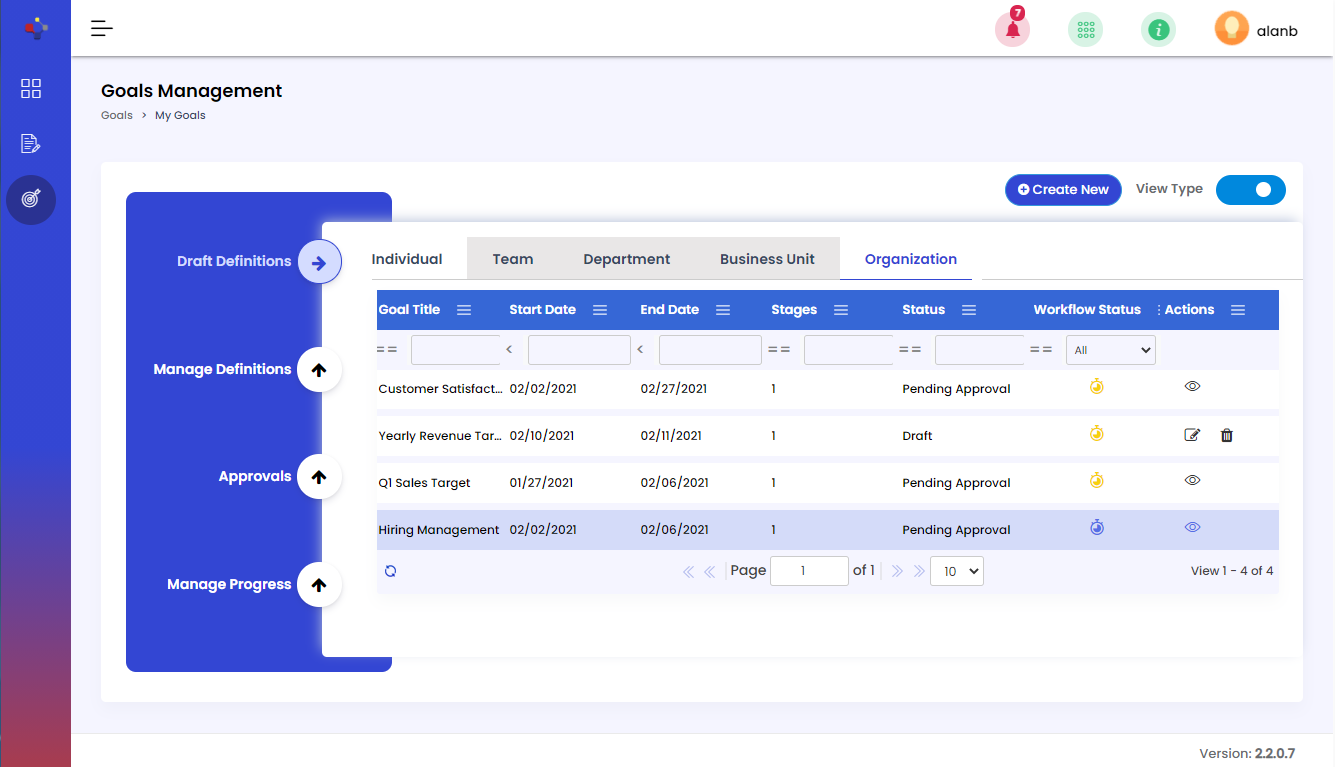
Goal Actions for Organization Goals
Setup a Goal
1. On the Workforce menu, click the Goals tab and click My Goals on the sub-menu. The My Goals page appears.
2. Click the Create New button to add a goal. The Goal Setup page displays.
3. Click the Goal Type tab to select the goal type that you would like to create. Select the type of goal and then click Next. (Based on the type of role, the radio buttons will be enabled for each goal type. For example, if you're a manager, both individual and team buttons will be enabled.)
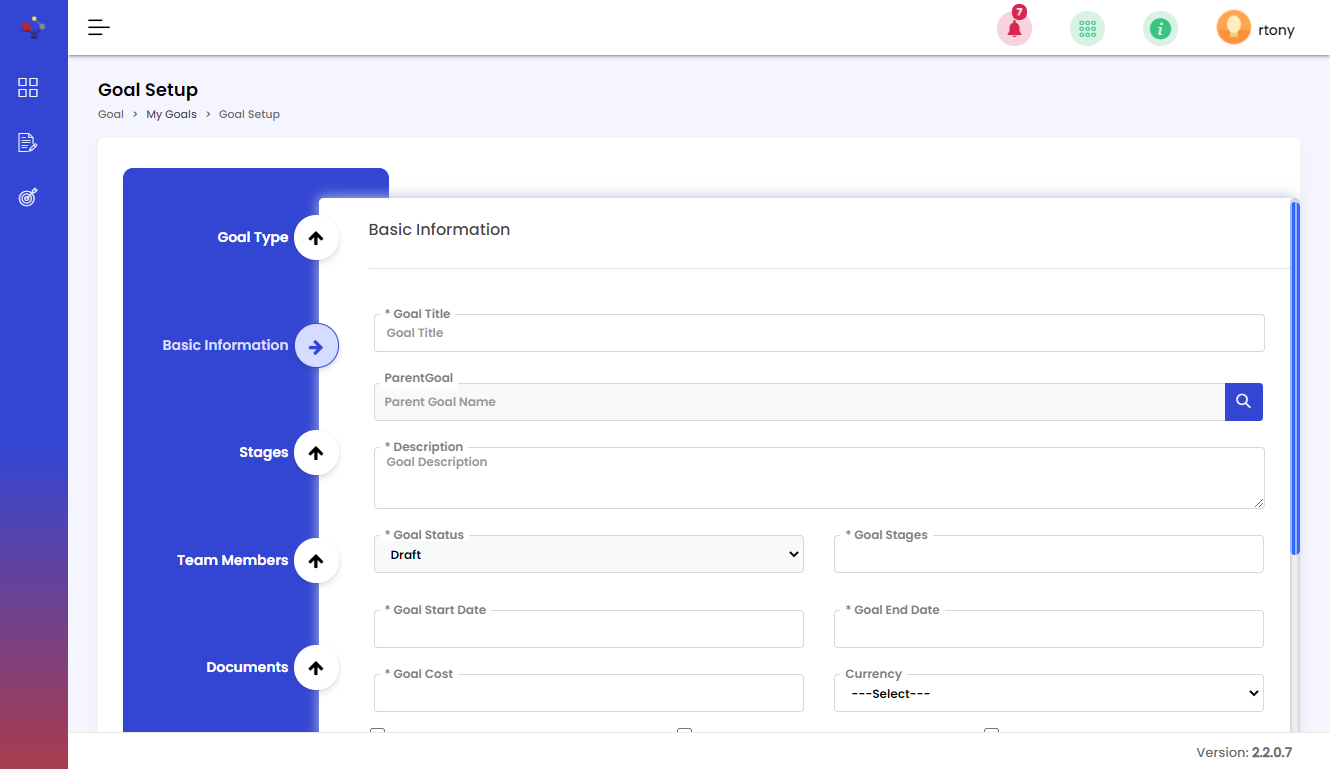
4. Click the Basic Information tab to enter the goal details. Enter the following fields and then click Save as Draft or Next.
- Goal Title: Enter the title for the goal.
- Parent Goal: Select the Parent goal to align the goal to be created with Org/BU/Department/Team goals. Click the Browse button to select a goal from the popup window.
- Description: Enter the description for the goal to be created.
-
Goal Status: You no need to enter this field. Based on the process flow, the system will auto populate the data in this field.
- Goal Stages: Set the number of stages that you want to create for the goal.
- Goal Start Date: Enter or select the date on which you want to active the goal plan.
- Goal End Date: Enter or select the date on which you want to end the goal plan.
- Goal Cost: Enter the cost associated with achieving the goal and correspondingly select the currency.
- Required for Career Progression: Click this check box, if you want to consider the goal for employees’ career progress.
- Mandatory Goal: Click this check box, if you want to assign the goal to employees without their acceptance. If this is selected, Employees will not see the Reject button for the goals assigned by Managers.
- Is Private? : This field will only be enabled when you've selected the goal type as Individual. Click this check box, if you want to make the goal private. If this is selected, manager approval is skipped for this individual goal.
- Goal Details: Enter the additional information for the goal.
5. To add stages to the goal, click the Stages tab and then click the Add Goal Stages button. The Goal Stages pop-up window appears. Enter the following fields and then click Save.
- Goal Name: You need not to enter this field, the application automatically takes the goal name.
- Stage Name: Enter the name for the stage.
- Stage Description: Enter the description for the goal stage.
- Stage Cost: Enter the cost associated with the goal stage.
- Amount Paid by Company: Select this check box, if the organization has paid the amount for the goal stage and correspondingly enter the amount.
6. To add team members to whom you want to assign goals, click the Team Members tab and then click Add Team Members button. In the Goal Team Members pop-up window, select the candidate(s) and then click Save.
7. To upload any documents associated with the goal, click the Documents tab and then click the Add Documents button. Provide the following fields in the Goal Documents pop-up window and then click Save.
- Goal Name: You need not to enter this field, the application automatically takes the goal name.
- Documents Title: Enter the document name.
- Documentation Version Number: Enter the document version.
- Document Description: Enter the description of the goal’s document.
- Upload Document: Browse and select the document by clicking the Choose File button.
- Notes: Type the notes or any other information of the goal’s document.
After saving all the details associated with the goal, you can view the goal in the Draft Definition tab. You can submit drafted goals to get the approval. Click the Submit button to send the the goal for approval. After the goal is submitted for approval, you can track the status in the Managed Definitions tab. After the goal is approved, you can edit the goal details, if required.
Approve / Reject Goals
1. On the Workforce menu, click the Goals tab and click My Goals on the sub-menu. The My Goals page appears.
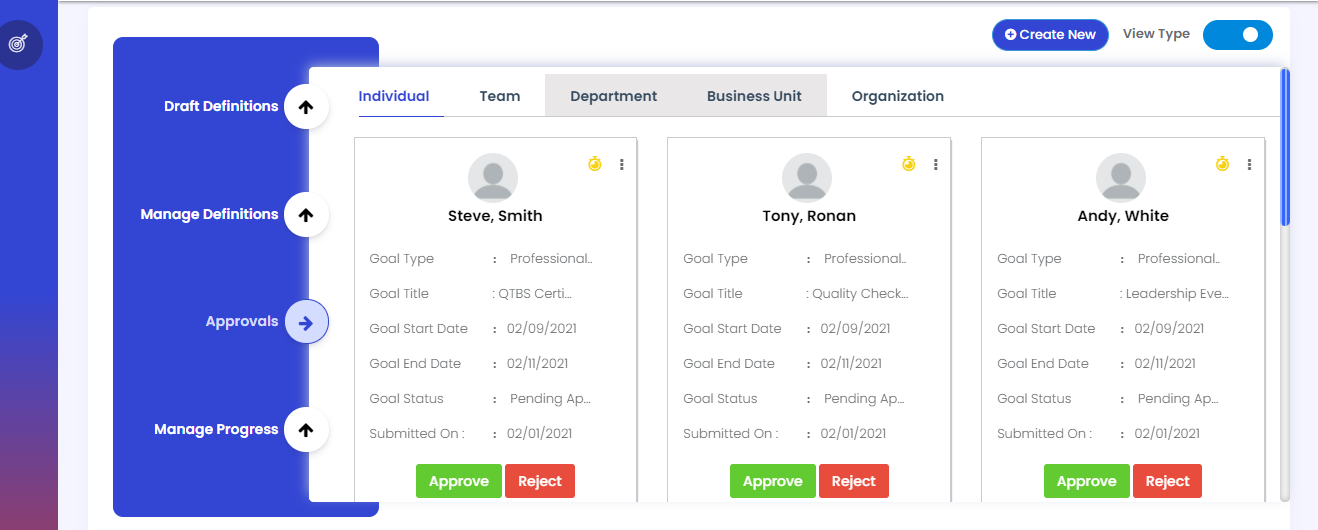
2. Click the Approvals tab, select the type of goal (indidual, team, department, etc.) and then click Approve / Reject buttons on the goal record that you would like to respond.
Reject Assigned Goals (Non Mandatory)
1. On the Workforce menu, click the Goals tab and click My Goals on the sub-menu. The My Goals page appears.
2. Click the Manage Progress tab, and then click the Reject button on the goal record that you would like to respond.
3. Enter the justification in the Reject Reason field, and then click the Save .
View Assigned Goals and Update Their Progress
You can view assigned goals, track the progress toward achieving them and update the status based on the stage completion.
To update the goal status:
1. On the Workforce menu, click the GOALS tab and then click My Goals on the sub-menu.
2. Click the Manage Progress tab, select the goal type (such as Individual or Team, for which you would like to track the status) and then click List of Stages button on the goal record that you want to view and update the progress. Provide the following details in the Update Stage Status pop-up window and then click Save.
- Candidate Goal Status: You need not to enter this field, the application automatically fills the data based on the overall goal status.
- Stage : Click the Plus button on the Stage. To add notes to the stage, click the Add Notes button, enter the notes and then click Save. To add Documents, click the Add Documents button and then click Save.
- Status: Click the status that you want to update such as Completed Successfully, In progress, and Deferred etc.
- Notes and Documents Click these tabs to view the activity log for the stage notes and documents updated through the goal lifecycle tracking.